Back to Home
Noob-Friendly Complete Manual

SherAlgo Installation and Usage Manual (Step-by-Step)

Built for beginners and updated for the newer compact panel. Follow this in order: install, activate, understand the collapsed layout, run one small demo session, then expand sections only as needed.

Default View
Collapsed sections

Start from the compact panel and open only the section you need.

Beginner Workflow
Trade -> Protect -> Manage

Set small values, place one planned trade, then manage risk before trying advanced tools.

Top Summary Strip
Always visible

Use the live totals at the top to confirm exposure before any mass action.

Before You Start

  • 1. Install MetaTrader 5 on Windows and log into your broker account.
  • 2. Confirm you can place manual trades on that account (market open, permissions OK).
  • 3. Keep a demo account ready. Do not start on live account first.
  • 4. Prepare your license key text exactly as received.
  • 5. Decide one symbol for testing (example: XAUUSD or BTCUSD).
  • 6. Expect the panel to open in a compact state. That is normal in the newer UI.

Installation (Noob Safe)

  1. In MT5, click File > Open Data Folder.
  2. Open folder path: MQL5 > Experts.
  3. Copy the SherAlgo file into this folder.
  4. If file is .mq5: open MetaEditor, compile, and ensure 0 errors.
  5. Return to MT5 and restart platform (or refresh Navigator).
  6. Open Navigator (Ctrl+N) and find SherAlgo under Expert Advisors.
  7. Drag EA to your chart.
  8. In popup, enable Allow Algo Trading and Allow live trading.
  9. Press OK.
Tip: if the newer slim panel looks too big or too small on your chart, adjust PanelScaleFactor in Inputs.

Activation (Exact Clicks)

  1. Right-click chart > Expert Advisors > Properties.
  2. Go to Inputs tab.
  3. Find LicenseKey and paste your key.
  4. Click OK.
  5. Now set WebRequest: Tools > Options > Expert Advisors.
  6. Enable: Allow WebRequest for listed URL.
  7. Add: https://83.147.39.49.
  8. Click OK.
  9. Remove EA from chart and attach again once.
  10. Check Experts tab for active license message.

Panel States and Layout

The updated UI is designed to stay slimmer on chart. You will usually see a top summary strip first, with the larger control groups collapsed until you open them.

  • Collapsed state: best for monitoring. Keep sections folded when you only need totals and account status.
  • Expanded state: open one section at a time so the chart stays readable and you avoid clicking the wrong control.
  • Top summary strip: this remains your quick check for opened lots, pending lots, floating P/L, equity, and balance.
  • Recommended order: open TRADE to plan entries, then RISK & PARAMS to protect them, then MANAGE only when you need exits or cleanup.

First Use Session (Beginner Flow)

  1. Use a demo account.
  2. Keep the panel compact first, then expand only the TRADE section.
  3. Set small values such as Lot = 0.01, Qty = 2 or 3, and a conservative Step suitable for your symbol.
  4. Place one plan only: click either BUY or SELL once, not both.
  5. Watch the top summary strip update so you can confirm the new lots and floating result.
  6. Expand RISK & PARAMS, type a clear SL, and apply it.
  7. Type a clear TP and apply it if you want a basket target.
  8. If price moves in your favor, test Set BE once.
  9. Only after that, open MANAGE and test one close tool or one cancel tool.
  10. Leave advanced AUTO or PB controls untouched on your first session.

Every Button Explained (Complete Dictionary)

Top Summary Strip (Always Visible)

Pending ON/OFF
What it does: Changes whether pending orders are included in the panel totals and basket-style calculations shown in the summary strip.
When to use: Use OFF if you want the top numbers to reflect only live open positions while you are managing active exposure.
Caution: This does not place, cancel, or protect orders. It only changes what the dashboard is counting.
Opened Lots / Limit Lots / Floating P/L / Equity / Balance
What it does: The slim summary strip that stays visible while sections are collapsed or expanded. It shows live account and symbol totals.
When to use: Read these values before entries, after any close/cancel action, and before using lock or auto features.
Caution: They update in real time. In fast markets, confirm again before pressing another button.

TRADE Section Buttons

BUY
What it does: Places one market BUY and, if your Qty/Step settings call for it, adds the related ladder entries for the current trade plan.
When to use: Use when you want to enter long immediately and your lot, quantity, and step values are already checked.
Caution: Beginners should start with very small size and a short ladder. Do not click twice because the panel already looks compact.
SELL
What it does: Places one market SELL and, if Qty/Step require it, adds the related ladder entries for the short-side plan.
When to use: Use when you want to enter short immediately and you have confirmed the symbol, lot, and direction.
Caution: Direction mistakes are common for new users. Pause and confirm you really want a short before clicking.
Buy Lmt / Sell Lmt
What it does: Creates pending LIMIT ladders from the price level you type, without opening an immediate market position first.
When to use: Use when you want price to come to your level instead of entering now.
Caution: If the typed start price is on the wrong side of market for that order type, the broker will reject it.
Buy Stp / Sell Stp
What it does: Creates pending STOP ladders from the typed start price for breakout-style entries.
When to use: Use when your plan is to join momentum only after price breaks a level.
Caution: Wide spread, broker stop-distance limits, or an invalid start level can prevent placement.
Compound
What it does: Adds follow-up stop entries in the same direction as the current open basket.
When to use: Use only after you already understand the manual flow and you have positions in one direction only.
Caution: Skip this if your book is mixed or if you are still learning basic entry and exit behavior.

RISK & PARAMS Section Buttons

SL
What it does: Applies the typed stop-loss price to the current symbol basket, including open positions and eligible pending orders.
When to use: Use immediately after creating the trade plan, especially on a demo first-run session.
Caution: If the stop is too close or on the wrong side, the broker can reject the modification.
TP
What it does: Applies the typed take-profit price across the current symbol basket.
When to use: Use when you want one shared exit level for the active setup.
Caution: An invalid target can fail on some order types, so check the level before assuming it applied.
Set BE
What it does: Moves the stop to break-even, plus any configured buffer, for qualifying positions.
When to use: Use after price has moved enough in your favor and you want to reduce downside risk.
Caution: Break-even helps protect the trade, but slippage and fast movement can still affect exits.
TP @ CMP
What it does: Sets the basket take-profit using the current market price at the time you click.
When to use: Use during live management when you want a quick, near-market target instead of typing a price.
Caution: On volatile symbols the current price can shift before the update finishes.
PYRAMID ON/OFF
What it does: Toggles the lot-scaling behavior used when the panel builds ladder orders.
When to use: Leave it OFF until you are confident with how the basic ladder behaves.
Caution: Pyramid mode can increase exposure faster than new users expect.
LK TP / LK SL
What it does: Closes the basket automatically when the configured money-based profit target or loss threshold is reached.
When to use: Use as a discipline tool after you understand the account-currency values you are entering.
Caution: These are account-currency thresholds, not price levels. A small wrong number can close too early.

MANAGE Section Buttons

CLOSE ALL
What it does: Closes all open positions for the current symbol from the manage section.
When to use: Use when you want to flatten the symbol quickly or finish the session cleanly.
Caution: This is immediate and cannot be undone once the broker fills the close.
Close Longs / Close Shorts
What it does: Closes only the BUY side or only the SELL side of the current symbol basket.
When to use: Use when you need to reduce one direction while leaving the opposite side untouched.
Caution: Read the current basket first. New users sometimes click the opposite side by mistake.
Cancel Limits / Cancel Stops / Cancel All Orders
What it does: Removes pending orders by category or clears every pending order on the symbol.
When to use: Use when your setup is no longer valid or you want to simplify the panel state before a new plan.
Caution: Canceled orders do not come back automatically. Rebuild them manually if needed.

AUTO Section Buttons

AUTO COMPOUND
What it does: Arms a one-time automatic follow-up compounding action when the required position state appears.
When to use: Use only after you have already tested manual compound behavior on demo.
Caution: When it shows DONE, it must be re-armed deliberately. Do not assume it will keep repeating.
PULL BACK (PB)
What it does: Enables the pullback entry logic when the configured trend and retracement conditions are met.
When to use: Use only after you understand the related inputs and have watched it on demo first.
Caution: This is an advanced section. Keep it collapsed while learning the core workflow.
PB AUTO LOT
What it does: Automatically scales pullback lot sizing according to the configured PB logic and limits.
When to use: Use only after the base PB behavior has already been validated in testing.
Caution: Misconfigured scaling can grow size quickly, so it is not a beginner setting.
SESSIONS
What it does: Shows or hides the chart session markers and visual aids.
When to use: Use when session timing matters to your execution plan.
Caution: This is a visual helper only. It does not block trades or reduce risk by itself.

Important Inputs Explained

These are the inputs beginners must understand first:

  • LicenseKey: your activation key.
  • DefaultLotSize: base lot used by panel actions.
  • NumberOfOrders: how many orders in ladder.
  • DefaultStepSize: gap between ladder levels (points).
  • DailyLossLimit: equity-based daily safety lock.
  • Panel section/display inputs: use these if you need to improve readability for the compact and expanded panel states.
  • PanelScaleFactor / FontSize / X/Y Offset: panel readability and position.
  • BE_BufferPercentOfStep / BE_MinBufferPoints: Set BE safety buffer tuning.
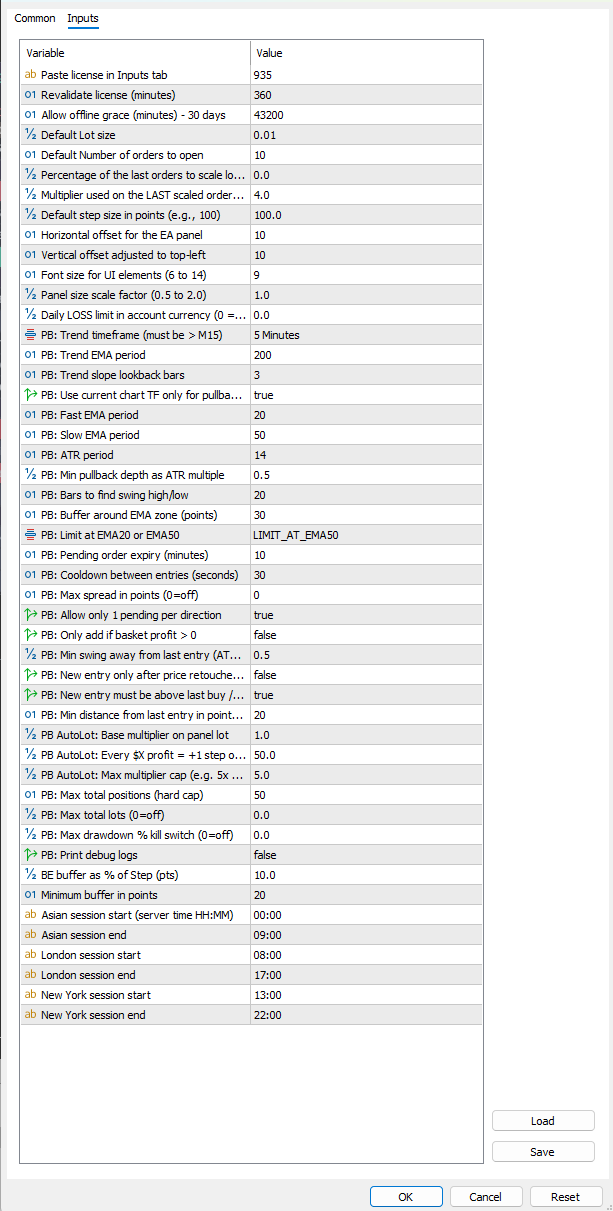
Inputs window

Safe Usage Rules (Do This Always)

  • Use demo first for at least 1 week before live account.
  • Never click BUY and SELL randomly. Choose one plan per session.
  • Keep unused sections collapsed so you can focus on the active task and avoid stray clicks.
  • Always define SL before increasing lot or quantity.
  • Set DailyLossLimit so one bad session cannot destroy account.
  • If confused, use only: the top summary strip, Lot/Qty/Step, BUY or SELL, SL, TP, Set BE, and basic Close/Cancel buttons.
  • Avoid PB/AUTO features until manual workflow is mastered.

Troubleshooting

  • Panel looks missing: first check whether sections are simply collapsed; then confirm Algo Trading is ON, the EA is attached, and the chart has enough space.
  • License failed: wrong key, WebRequest missing, no internet, or bad host format.
  • Orders rejected: lot below minimum, no margin, market closed, invalid stops.
  • Buttons do nothing: check Experts/Journal tabs for exact broker error message.
  • Mixed positions issue: close one direction before Compound/AUTO actions.

Panel Screens (Match With Button Sections)
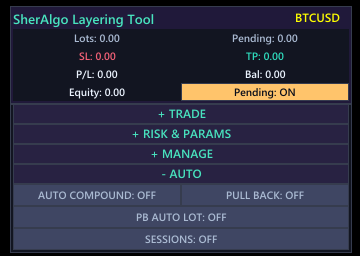
Collapsed Panel

Collapsed Panel

Compact default state with the top summary strip visible and deeper controls folded away.
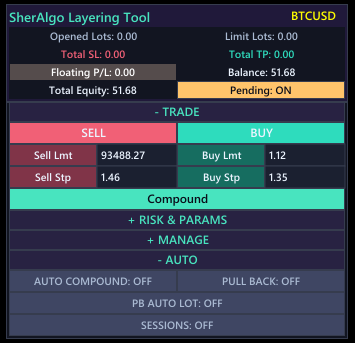
TRADE Section Expanded

TRADE Section Expanded

Open this first for entry planning, order direction, and ladder actions.
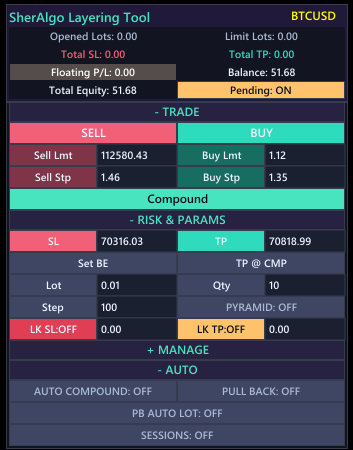
RISK & PARAMS Expanded

RISK & PARAMS Expanded

Use after entry for SL, TP, break-even, and core parameter checks.
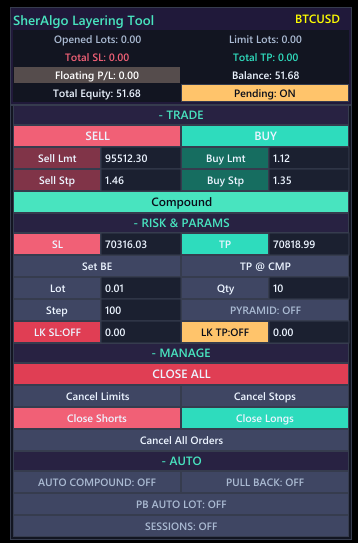
MANAGE Section Expanded

MANAGE Section Expanded

Open only when you need to close positions or cancel pending orders.